
Aggregating cells
3 minute read
It is possible to execute Mongo DB aggregation pipelines in the Data Miner app. The output from the aggregations can be in two formats - CSV and JSON.
|
Note
|
CSV format is good for simple structures, while JSON can contain any structures. |
Create pipeline
-
Press the
Add stagebutton.
Figure 1. Add stage button -
The new stage is displayed.
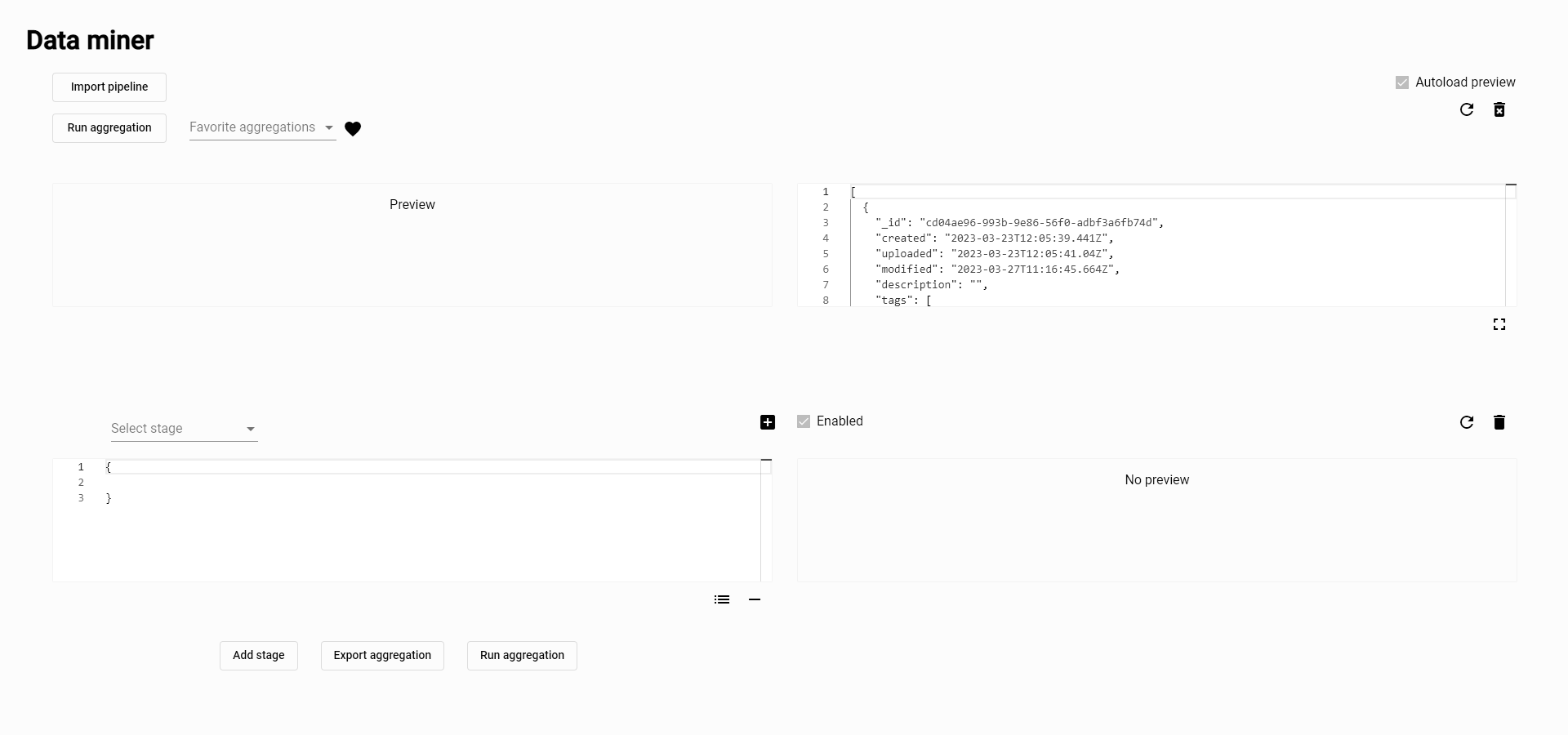 Figure 2. New stage
 -
Press
Select stageto see the list of available operators.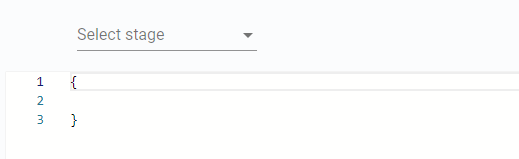 Figure 3. Select stage operator
 -
Every operator has a prepared stage body, which can be left as it is or changed.
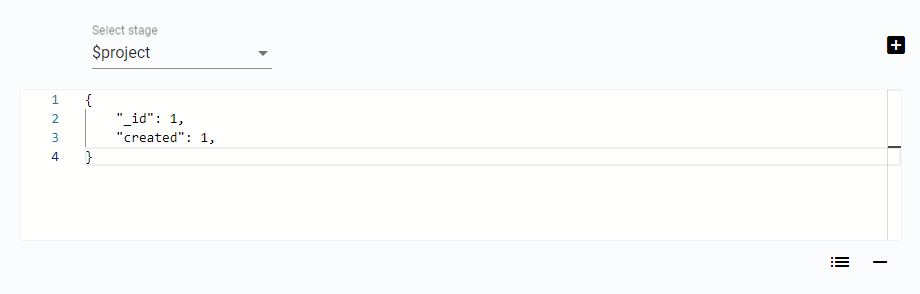 Figure 4. Stage body
If the stage body is valid, a partial result is visible on the side. The result depends on the stage it belongs to and all the stages before.
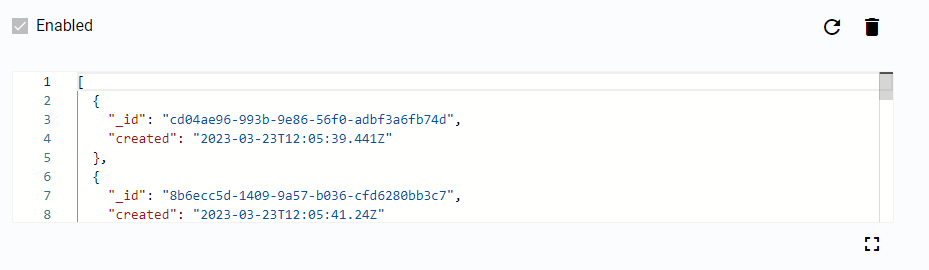 Figure 5. Stage body
Change the order of stages
Move up/down buttons become visible if there is more than 1 stage.

Figure 6. Move stage buttons
Enable and disable stage
Stages can be enabled or disabled using the Enabled button.
Preview is displayed only if the stage is enabled and correct.
-
To run only specific stages in the pipeline, press the
Enabledbutton to enable the stage.
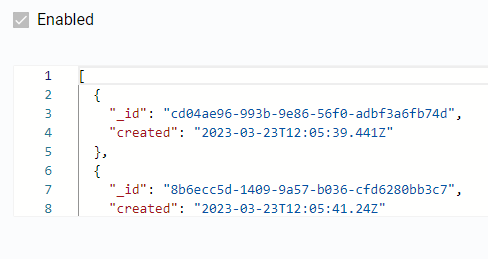
Figure 7. Enabled button
-
As the stage is disabled, there is no partial result.
Deactivated stages can still be edited, moved, or removed. All without influencing the pipeline.
New favorite Aggregations
Aggregation can be saved as a favorite one and loaded back later.
-
Press the
New favorite aggregationbutton.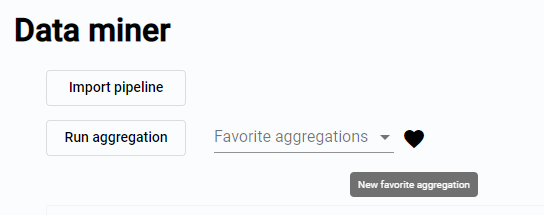 Figure 8. New favorite aggregation button
 -
Pop up window asking about the name of the new favorite aggregation is displayed.
 Figure 9. Add favorite aggregation
 -
Press the
Addbutton to save aggregation as a favorite. Figure 10. Loaded favorite aggregation
Save favorite aggregation
-
Press the
Savebutton to save changes in the aggregation.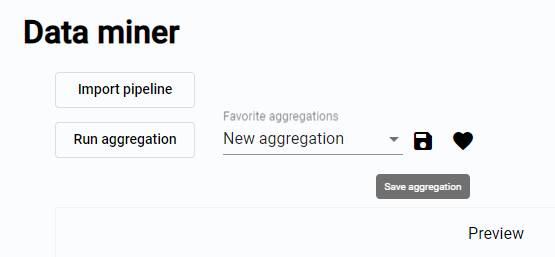 Figure 11. Save aggregation button
Load favorite aggregation
-
Press the name of the selected favorite aggregation to see a list of all saved favorite aggregations.
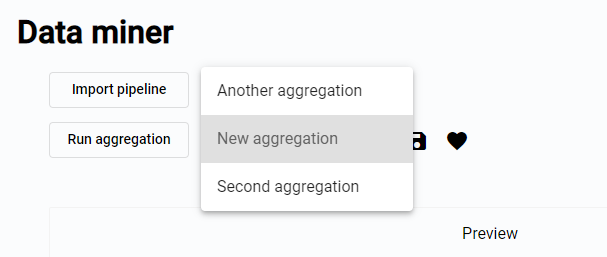 Figure 12. List of favorite aggregations
 -
Select aggregation to load.
Import aggregation
-
Press the
Import pipelinebutton to import aggregation. Figure 13. Import pipeline button
 -
The
Aggregation importwindow is opened, add inside the aggregation to upload.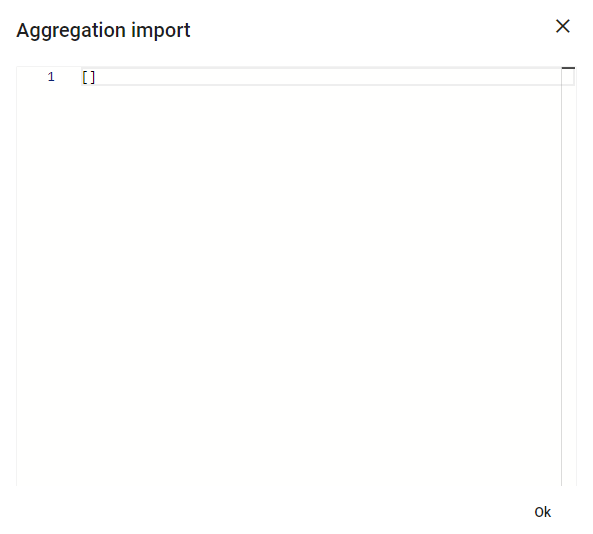 Figure 14. Aggregation import window
 -
Press the
Okbutton to load aggregation.
Export aggregation
-
To export aggregation press the
Export aggregationbutton. Figure 15. Export aggregation button
 -
The
Aggregation exportwindow is opened, with aggregation in text form.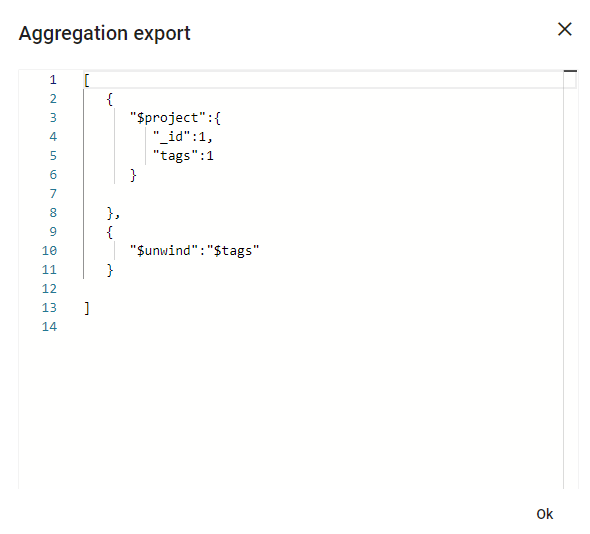 Figure 16. Aggregation export window
Run aggregation
-
Press the
Run aggregationbutton. Figure 17. Run the aggregation button
 -
Select output format.
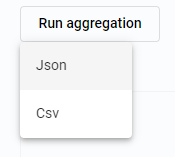 Figure 18. Output format options
 -
The window with the result is displayed. Press the
Downloadbutton to download the result.